VRC Texture Painter

For VRChat avatars · Poiyomi & lilToon

Fix your avatar's textures without leaving Unity.

Paint over visible seams, melt hard colour edges into smooth transitions and make body and face textures match, right on the model in the Scene view. Then switch tabs and paint emission, glitter or pathing masks in a few strokes.

  • v1.2.0
  • Unity 2022.3
  • Editor only, safe for uploads
  • MIT license
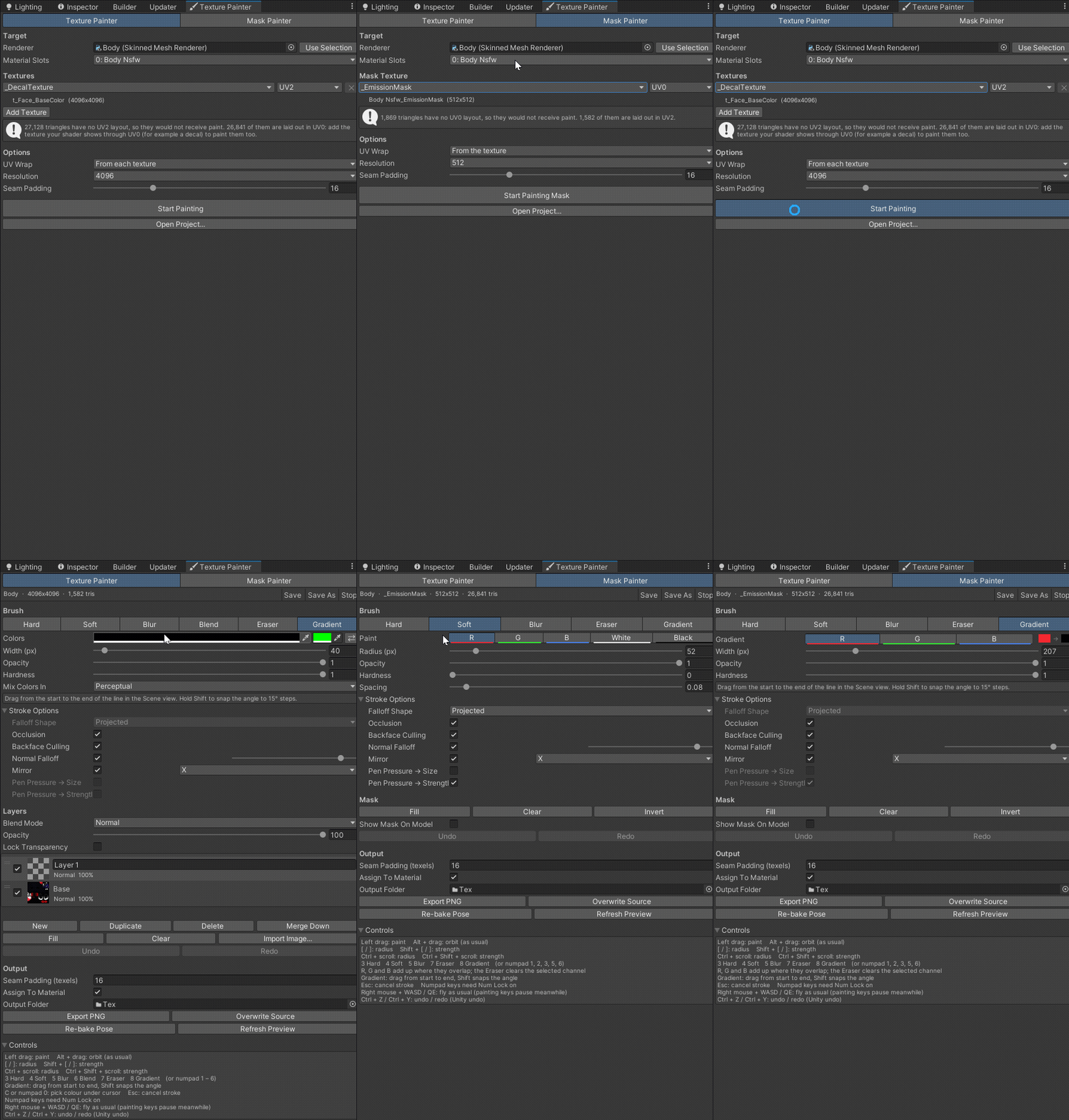
The VRC Texture Painter window switching between the Texture Painter and Mask Painter tabs
Two tabs: Texture Painter for colour, Mask Painter for shader masks.

Common problems it fixes

Problem A hard line runs across the model UV seams and painted edges that stand out in VRChat. Problem Head and body don't match A colour step where a face texture meets the body texture. Problem Masks are a guessing game Drawing masks in an image editor without seeing the UVs.

Texture Painter

Fix what looks wrong, where it looks wrong

You paint on the avatar itself, not on a flat UV map. Every stroke follows the 3D surface, so it keeps going across UV seams and lands on every piece of the texture that sits under the brush.

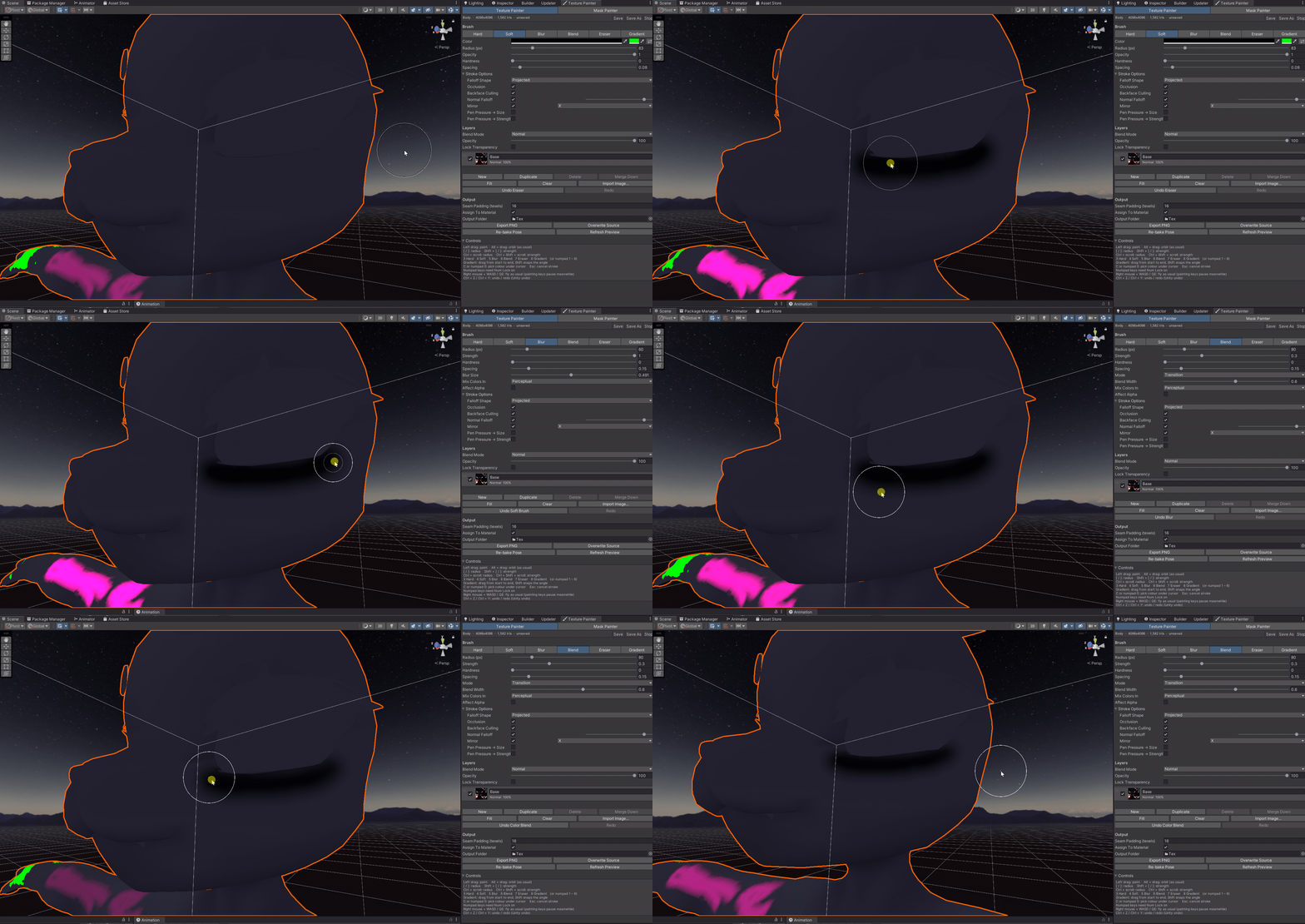
A dark line on the avatar's head is painted with the Soft brush, softened with Blur and then blended into the surrounding colour

Seams and hard edges

Melt a hard line into the colours around it

Soften the edge with Blur, then run the Blend brush over it. Blend turns the border into a smooth gradient between the colours on both sides, without smearing paint along the stroke.

  • Works straight across UV seams, because both sides are next to each other on the model.
  • Perceptual colour mixing, so transitions don't go grey or muddy in the middle.
  • Seam padding keeps thin lines from showing up in mip maps.
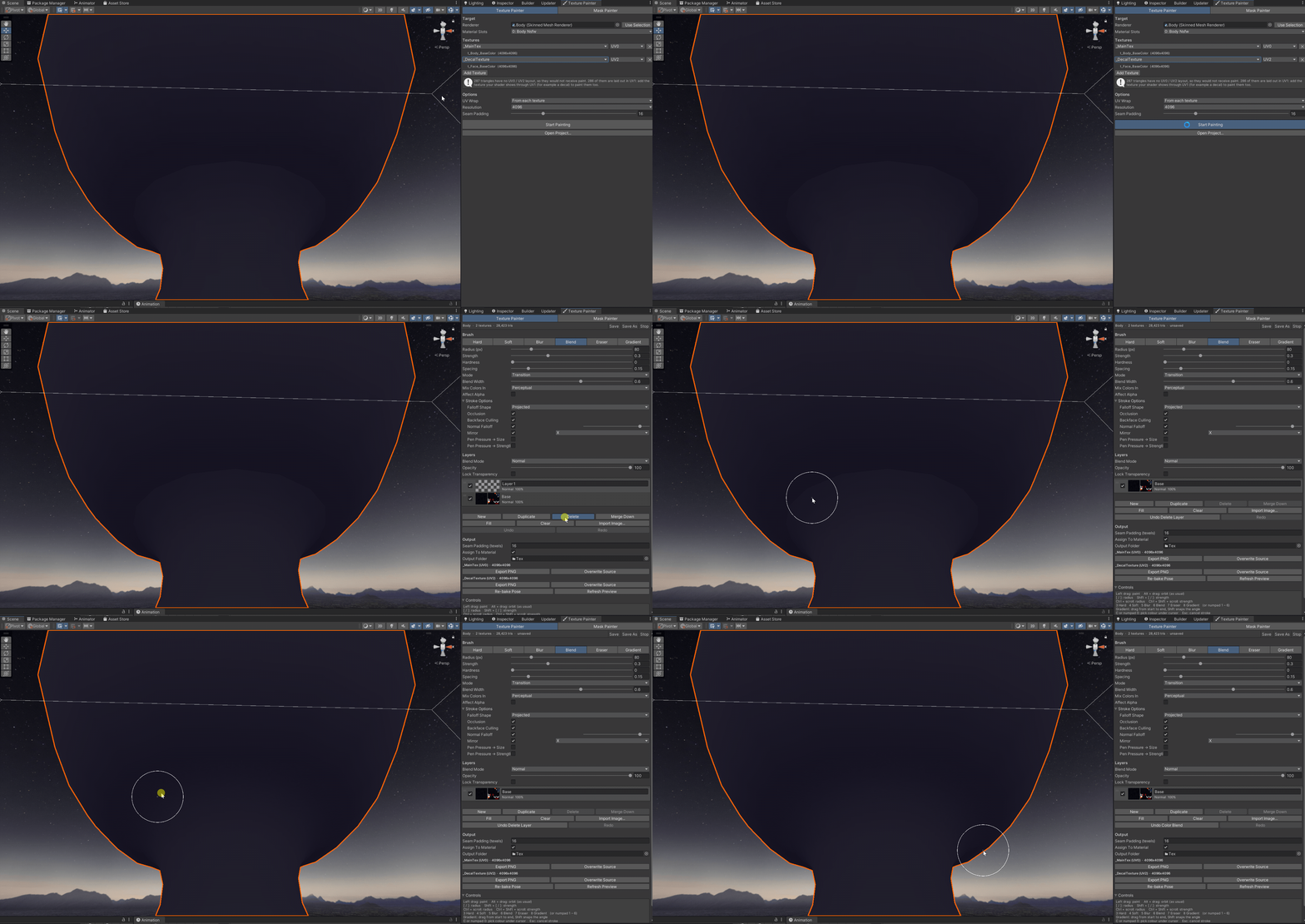
The body texture on UV0 and a face decal on UV2 are painted together, and the Blend brush smooths the neck where they meet

Several textures, several UV channels

Blend the neck where two textures meet

Lots of avatars draw the face from its own texture, for example a Poiyomi decal on UV2 next to the body on UV0. Add both textures, and one Blend stroke over the neck paints both at once, so the colour step blends away.

  • Poiyomi decals show up as one-click buttons with the right UV channel.
  • The window tells you when parts of the mesh would not receive paint.
  • Mirrored, overlapping and tiled UVs just work.

Mask Painter

Poiyomi and lilToon masks, painted right on the model

Stop guessing where a mask lands on the UV map. Pick the mask, paint where you want the effect, and see the result live on your avatar.

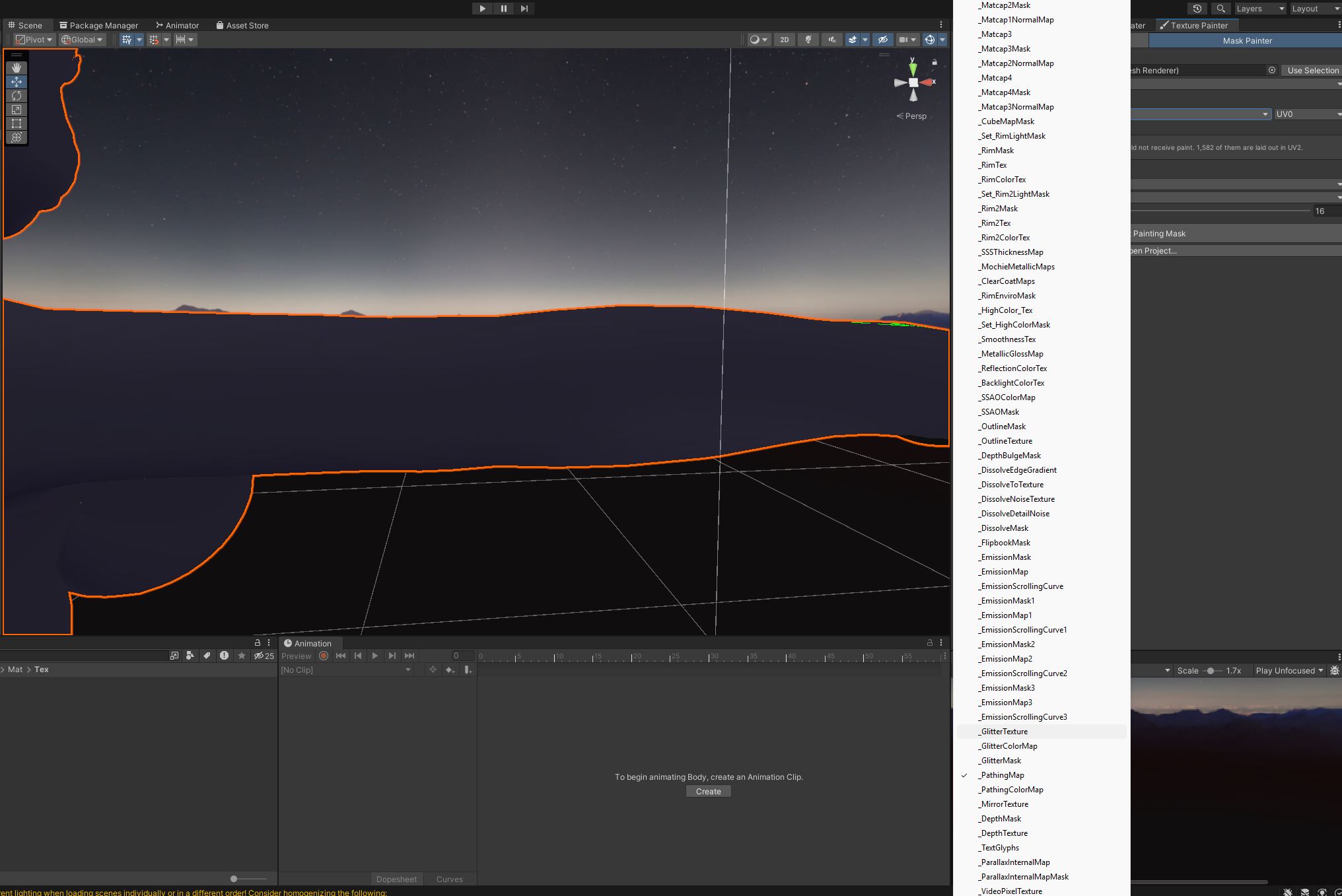
The Mask Texture dropdown listing a Poiyomi material's mask slots, from matcap and rim masks to emission, glitter and pathing maps

Step 1

Pick any mask your shader has

The Mask Painter lists every mask slot on the material: Poiyomi's _EmissionMask, _GlitterMask or _PathingMap, lilToon's _EmissionBlendMask or _ShadowStrengthMask, and the slots of any other shader.

  • No mask yet? An empty slot starts black, and Create Texture saves a new one and assigns it.
  • Pick an Output Folder once and new masks save there without a dialog.
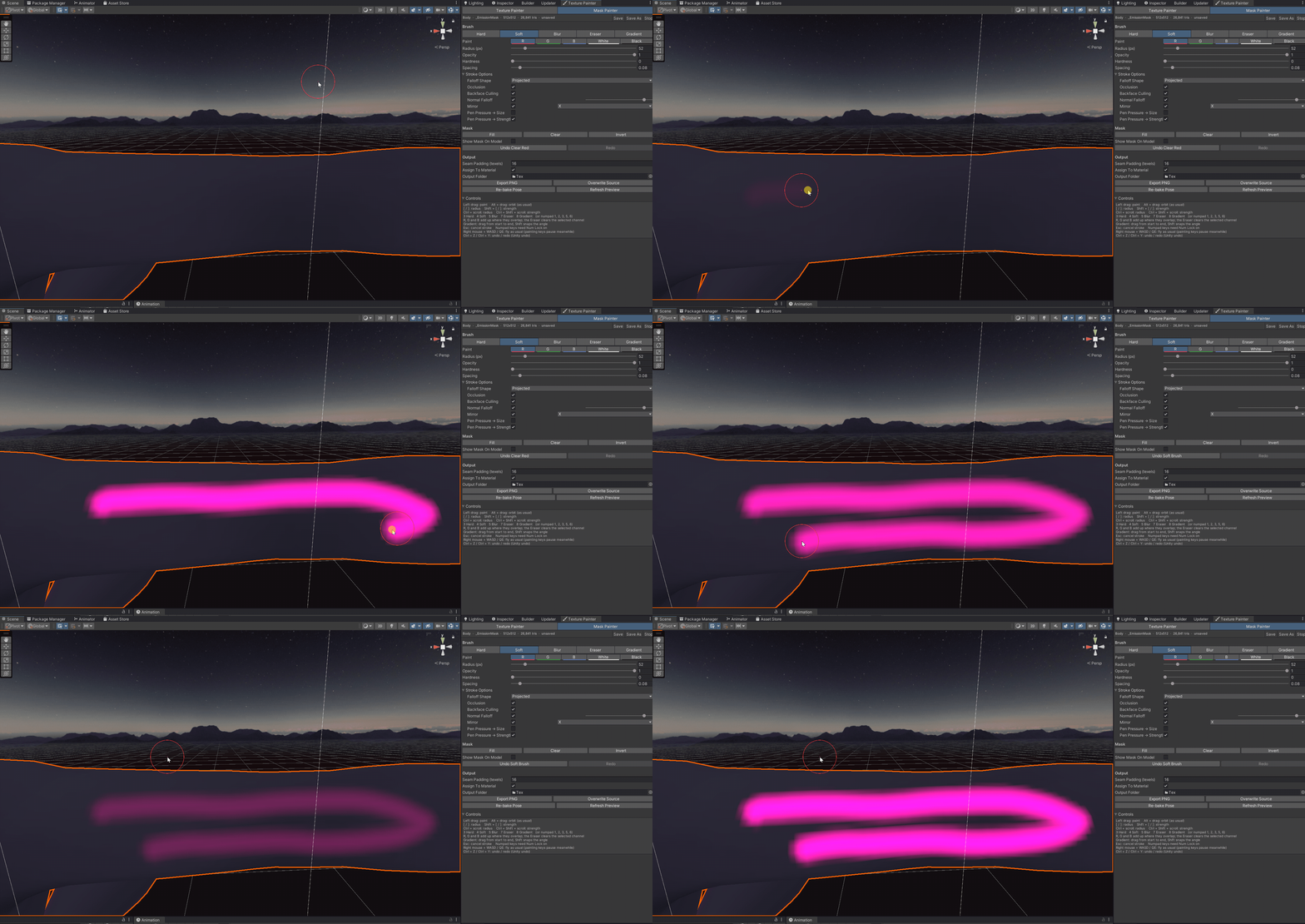
Painting a soft glowing stroke into the emission mask

Soft emission glow

The Soft brush paints emission that fades out smoothly at the edges.

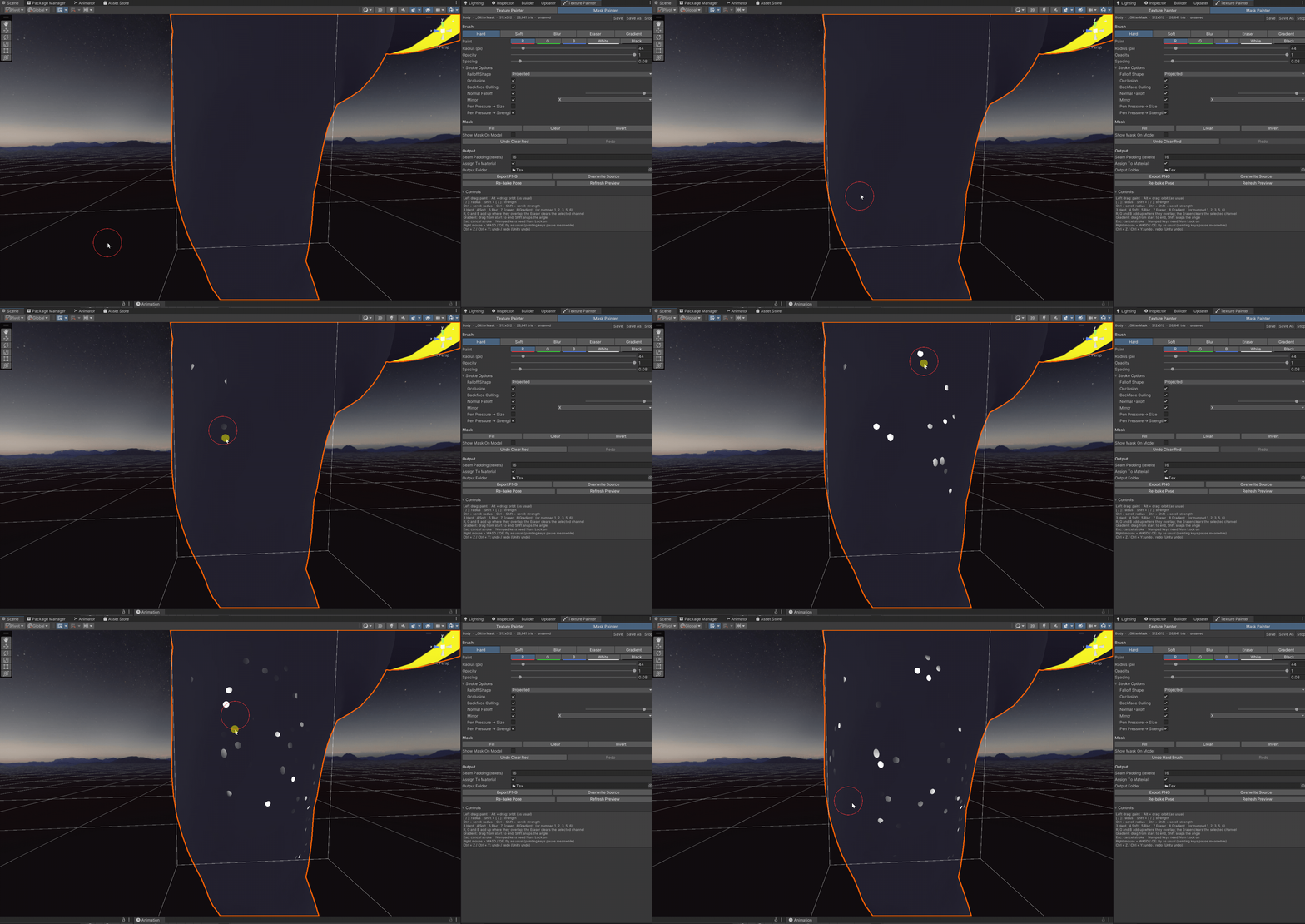
Dabbing white spots into the glitter mask with the Hard brush

Glitter exactly where you want it

Dab spots into the glitter mask with the Hard brush, one click each.

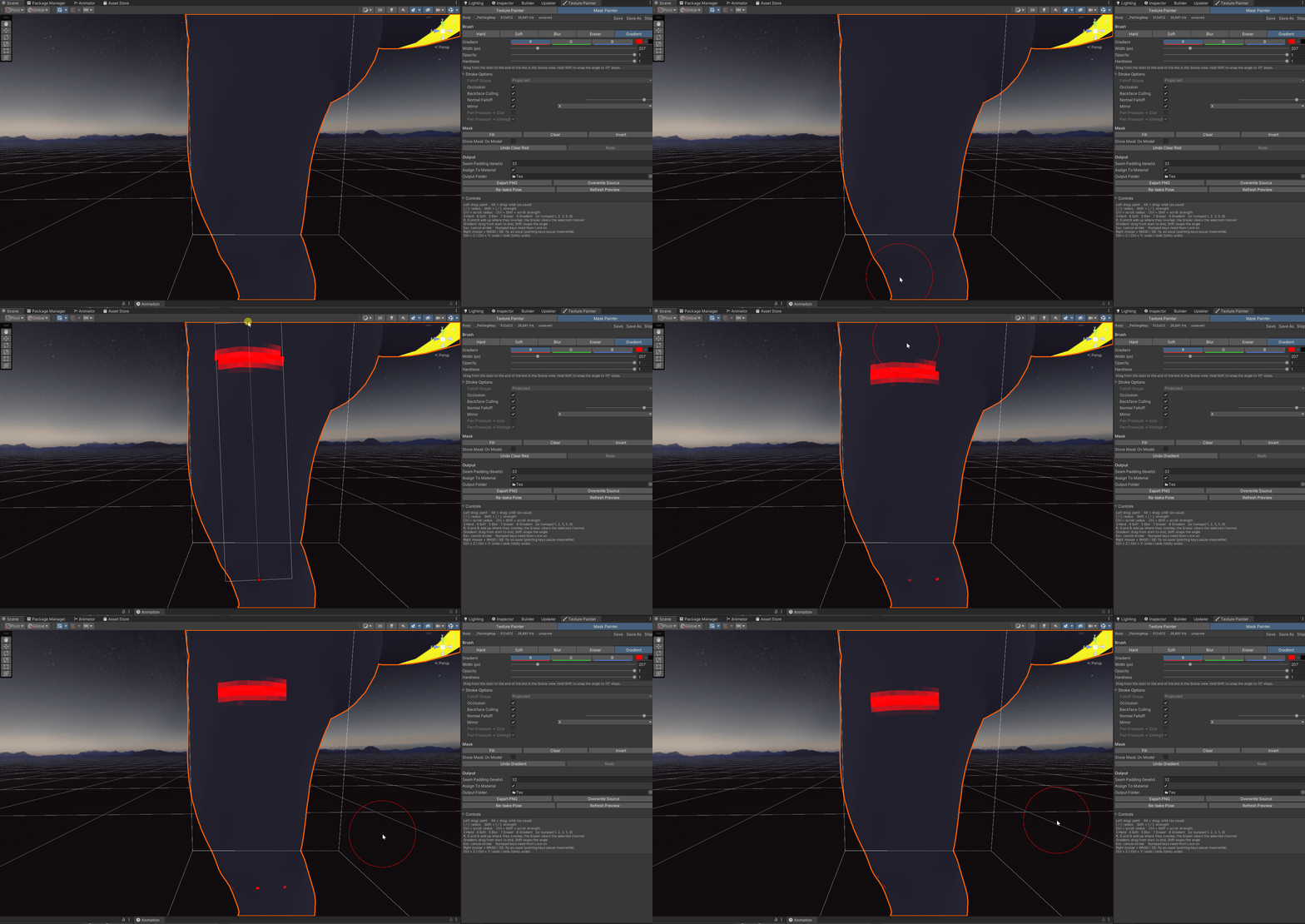
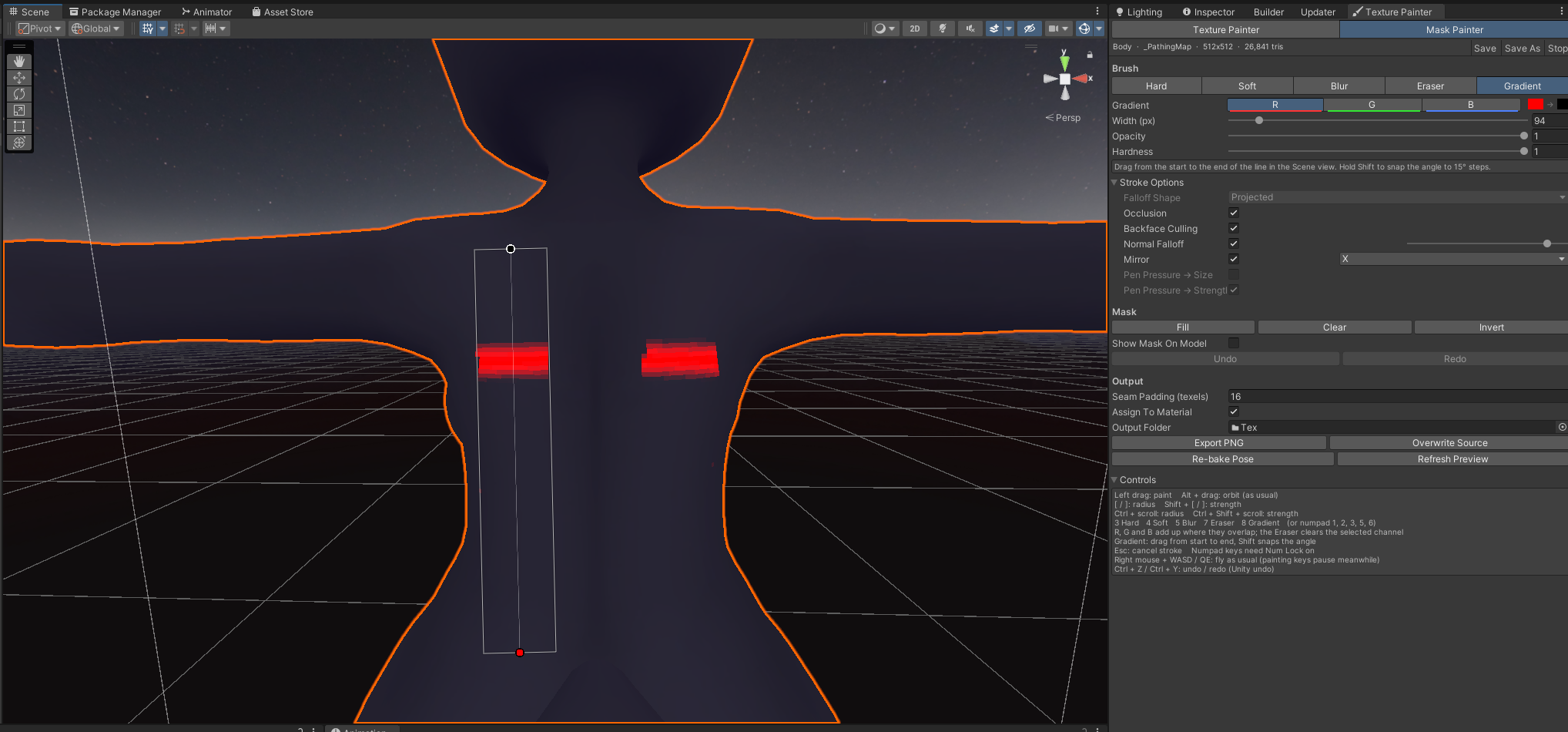
Dragging a red to black gradient line into the pathing map

Gradients for paths and fades

Drag a line from start to end. The mask fades from the channel colour to black along it.

A gradient line in the red channel of the pathing map, painted on both sides of the avatar at once with Mirror on

Step 2

Several masks in one texture

Choose R, G or B and each brush only changes that channel. Paint red and then green over the same spot and you keep both masks, which is exactly what shaders that read one mask per channel need.

  • Mirror paints the left and right side of the avatar in one stroke.
  • Show Mask On Model shows the mask on the avatar, even while the effect is turned off.
  • Fill, Clear and Invert work on the selected channel. Alpha is never touched.

New in 1.2

Stamps and custom brushes

Place a symbol, logo or pattern with one click, or paint strokes in the shape of any black and white texture.

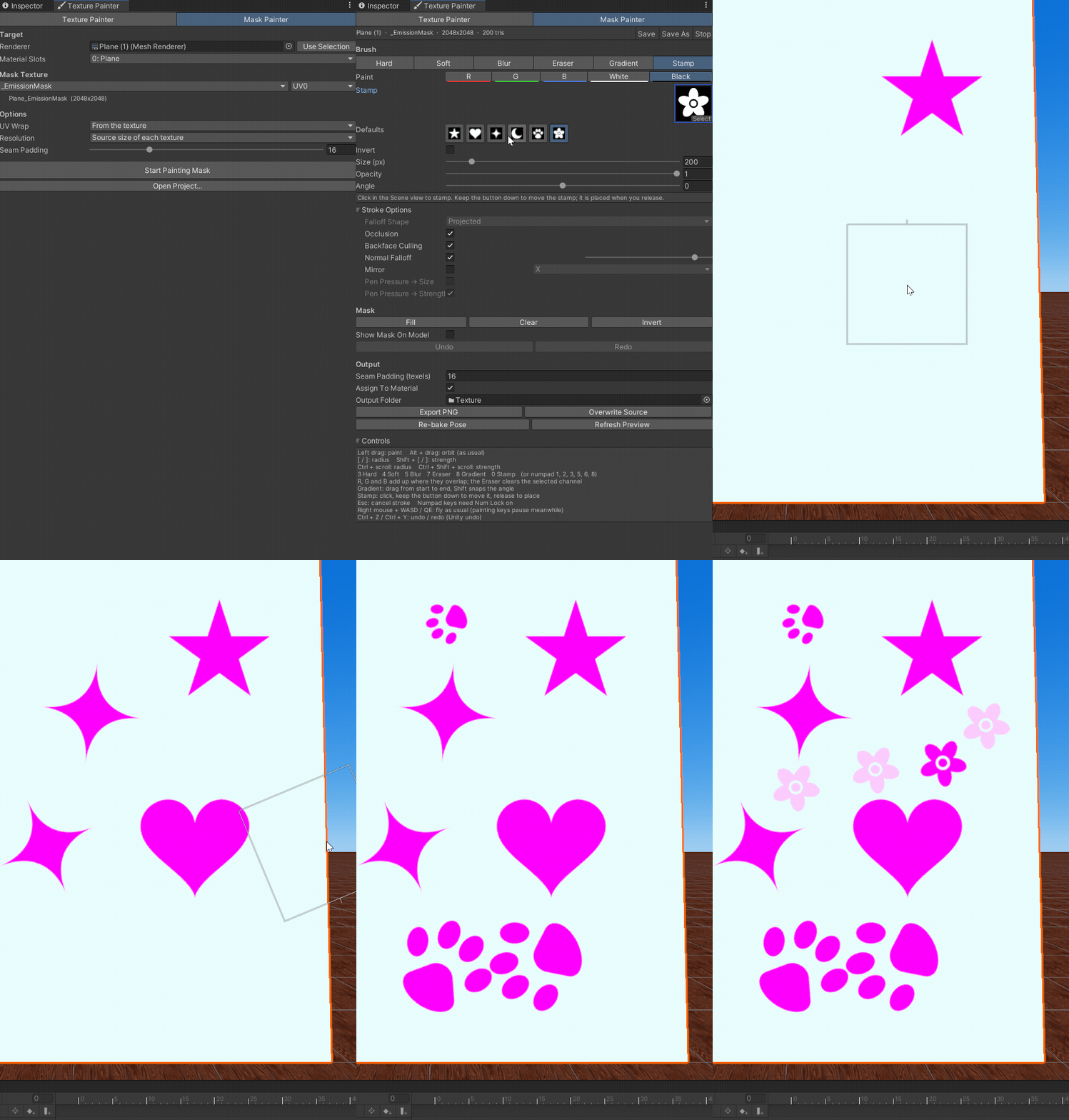
Stamp and Custom brush

Any black and white texture works

White paints, black does not, and transparent areas never paint. Six shapes are included, and any texture in your project can be a stamp or a brush tip.

  • Star, heart, sparkle, moon, paw and flower come with the package.
  • Size, Opacity and Angle for both tools, and Invert to swap black and white.
  • Stamps work in the Texture Painter and the Mask Painter.
Stars, hearts, paws and flowers are stamped into an emission mask with the Stamp tool

Stamp a shape with one click

Click to place a stamp, or keep the button down to move it first. In the Mask Painter it goes into the selected channel.

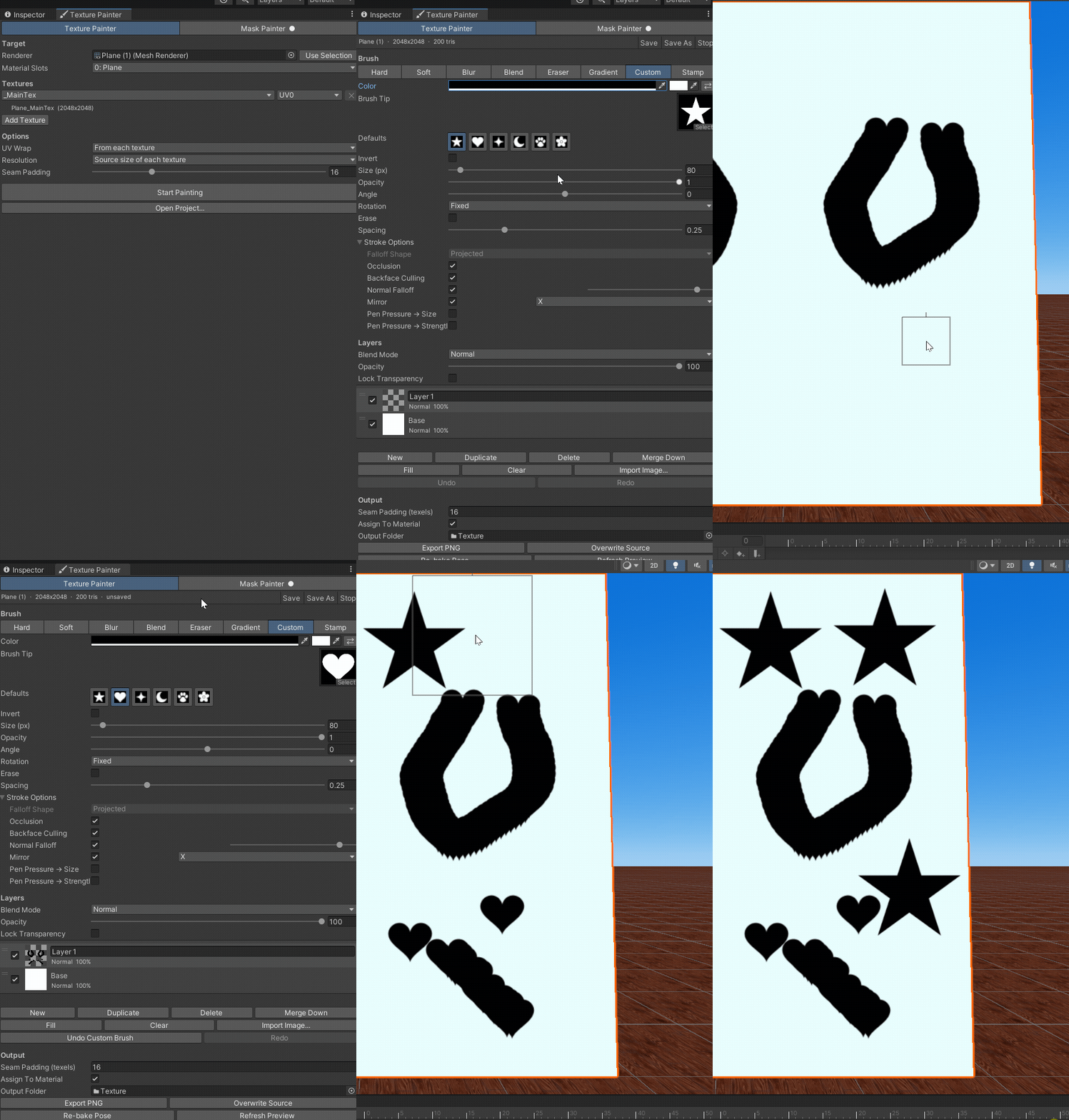
Trails of hearts are painted with the Custom brush in the Texture Painter, next to stamped stars

Paint with your own brush shape

The Custom brush repeats a texture along the stroke. Keep the dabs fixed, turn them with the stroke or turn them randomly, or switch to Erase.

Install

Three steps with the Creator Companion

  1. Add the listing

    Click Add to VCC. The Creator Companion opens and asks you to confirm.

    Add to VCC
  2. Add it to your project

    Open your avatar project with Manage Project and add VRC Texture Painter.

  3. Start fixing

    In Unity, open Tools > VRC Texture Painter, pick your avatar's mesh and press Start Painting, or switch to the Mask Painter tab.

Add the listing manually
  1. Open the Creator Companion and go to Settings, then Packages.
  2. Click Add Repository, paste the listing URL and click Add.
  3. Confirm with I Understand. The package now shows up in every project.

Package

Release details

VRC Texture Painter

v1.2.0
com.vrctexturepainter.tool

Paint textures and shader masks directly on your avatar in the Scene view, like Blender's Texture Paint mode: hard, soft, blur, color blend, eraser, gradient, custom texture brush and stamp tools, Photoshop style layers, a mask painter for Poiyomi and lilToon masks, and 3D projection painting that stays correct across UV seams, mirrored UVs and multiple UV channels. Editor-only.

  • vrchat
  • avatar
  • texture
  • paint
  • layers
  • poiyomi
  • liltoon
  • mask
  • editor
Author
ToffelsKater
License
MIT
Dependencies
None